Подключения: биржи, ключи, проксиConnections: exchanges, keys, proxies
Подключение — это одна биржа и один её рынок (фьючерсы или спот). Без ключей подключение показывает стаканы, ленту и графики, а торговать можно на демо-счёте. С ключами — торговля на вашем счёте биржи.A connection is one exchange and one of its markets (futures or spot). Without keys it shows the books, the tape and the charts, and you can trade on the demo account. With keys — trading on your exchange account.
Добавить биржуAdd an exchange
В разделе «Биржи» четыре вкладки: «Подключения», «Демо-счёт», «Прокси», «Два интернета». В новой программе подключений нет.The “Exchanges” section has four tabs: “Connections”, “Demo account”, “Proxies”, “Two internets”. A new program has no connections.
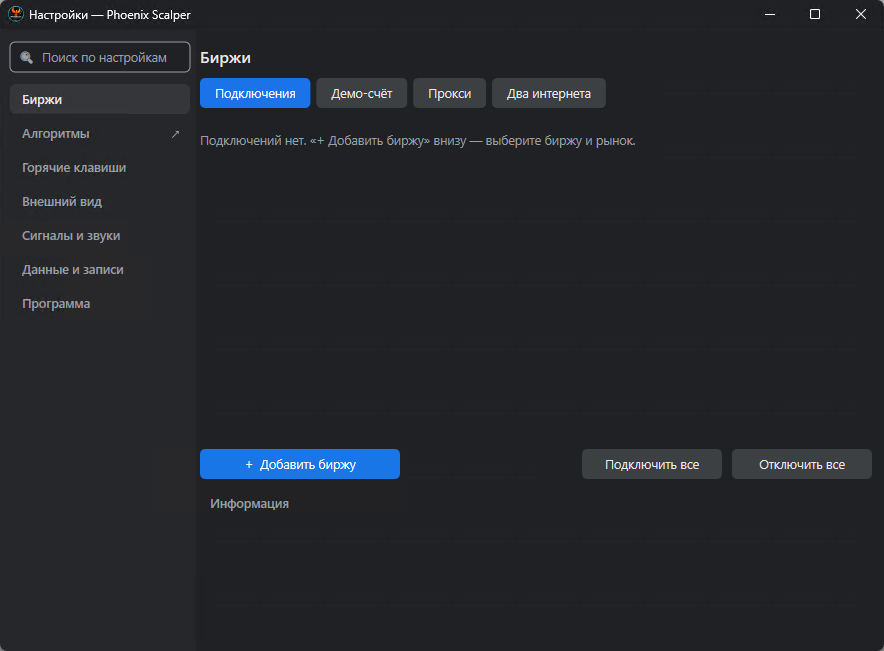
- Нажмите «+ Добавить биржу».Press “+ Add exchange”.
- Выберите биржу и рынок: F — фьючерсы, S — спот. Одна биржа может быть подключена и фьючерсами, и спотом — это два подключения.Choose the exchange and the market: F — futures, S — spot. One exchange may be connected both ways — that's two connections.
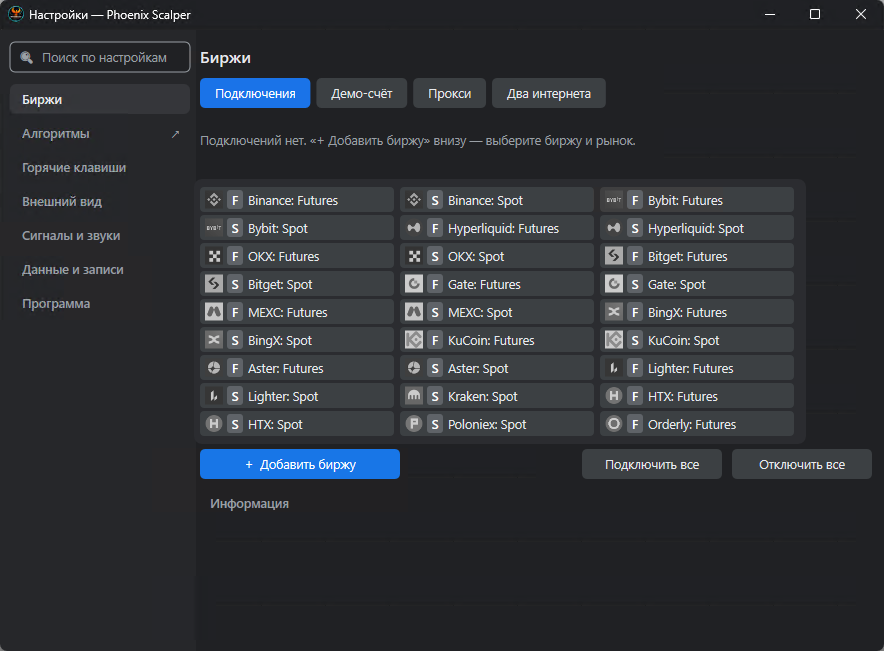
«Подключить все» и «Отключить все» — включить или выключить сразу все подключения из списка (сами подключения и ключи остаются).“Connect all” and “Disconnect all” turn every connection in the list on or off (the connections and keys stay).
Подключение и ключиThe connection and its keys
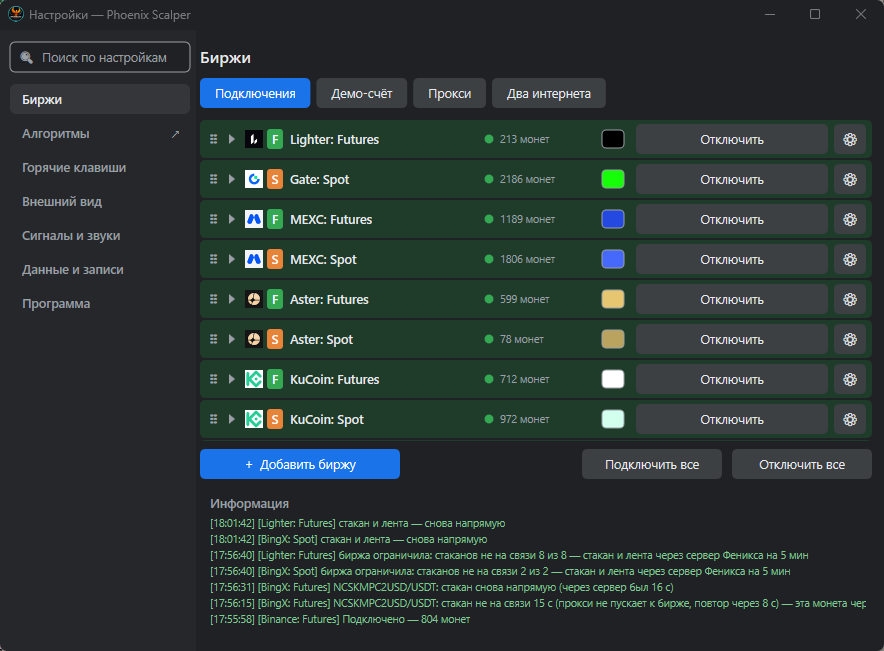
Каждое подключение — строка в списке. Порядок строк можно менять, перетаскивая за ⠿.Each connection is a row. Drag ⠿ to change their order.
 12
34
56
12
34
56
- ⠿ ▸ — ⠿ перетащите, чтобы поменять порядок; ▸ раскрывает строку: ключи биржи (ниже).— drag ⠿ to reorder; ▸ opens the row: the exchange's keys (below).
- Состояние.State. Точка: зелёная — на связи, жёлтая — подключается, оранжевая — демо, серая — отключено. Рядом — сколько монет загружено; «ключ ✓» или «нет ключа»; «ДЕМО»; и как идут данные: напрямую, через прокси или через сервер Феникса.The dot: green — online, yellow — connecting, orange — demo, grey — off. Next to it — how many coins are loaded; “key ✓” or “no key”; “DEMO”; and how the data come: directly, through a proxy or through the Phoenix server.
- Цвет подключения.Connection colour. Нажмите, чтобы выбрать: этим цветом подключение отмечено в стаканах и списках.Click to choose: the connection is marked with it in ladders and lists.
- Подключить / Демо / Отключить.Connect / Demo / Disconnect. У отключённого — «Подключить» (с ключами — ваш счёт) и «Демо» (торговля на демо-счёте, глава 5); у включённого — «Отключить».An off connection has “Connect” (with keys — your account) and “Demo” (trading on the demo account, chapter 5); an on one — “Disconnect”.
- ⚙ — настройки стаканов этого подключения (отдельное окно, глава 4).— the ladder settings of this connection (a window of its own, chapter 4).
- Информация.Information. Журнал подключений: когда подключилось, когда биржа ограничила запросы и данные пошли через сервер Феникса, когда вернулись напрямую. Ошибки — красным.The connections' log: when it connected, when the exchange limited requests and the data went through the Phoenix server, when they came back directly. Errors are red.
Ключи биржиExchange keys
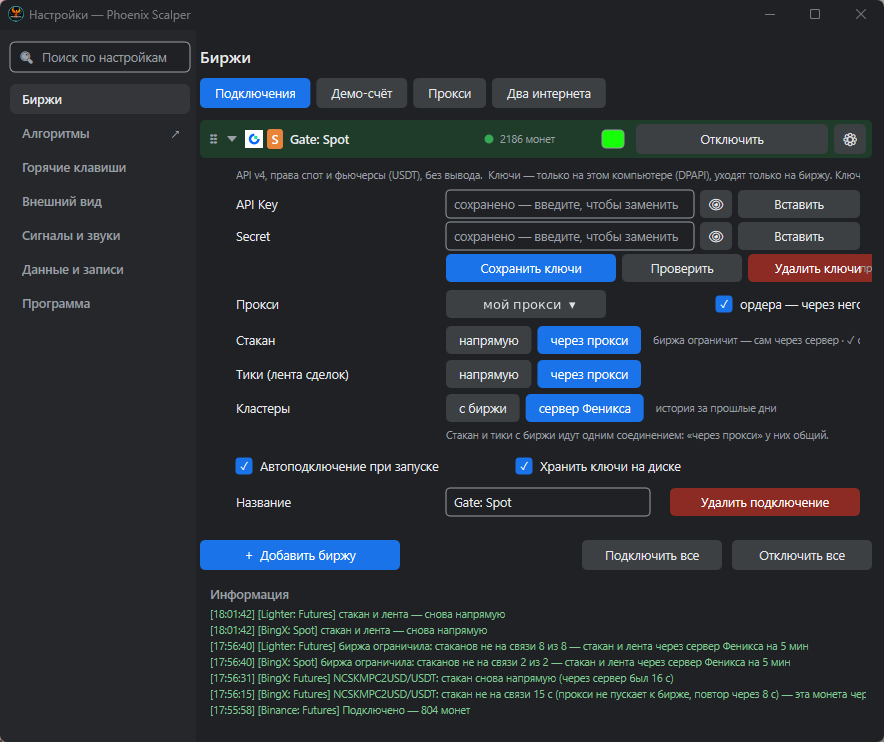
Нажмите ▸ у подключения — откроются его ключи и настройки.Click ▸ on a connection to open its keys and settings.
 123456789
- Подсказка биржи.Exchange hint. Какие права дать ключу на сайте биржи. Ключ всегда создавайте без права вывода.Which permissions to give the key on the exchange website. Always create the key without withdrawal rights.
- Поля ключей.Key fields. API Key, Secret (у некоторых бирж ещё Passphrase). Сохранённый ключ не показывается: в поле написано «сохранено — введите, чтобы заменить». 👁 — показать вводимое, «Вставить» — из буфера обмена.API Key, Secret (some exchanges also need a Passphrase). A saved key is never shown: the field says “saved — type to replace”. 👁 shows what you type, “Paste” takes it from the clipboard.
- Сохранить / Проверить / Удалить ключи.Save / Check / Delete keys. «Проверить» обращается к бирже и сообщает, подходит ли ключ. «Удалить ключи» стирает их с компьютера.“Check” asks the exchange and tells you whether the key works. “Delete keys” erases them from the computer.
- Прокси.Proxy. Выберите прокси из списка («+ новый прокси» — вкладка «Прокси»). Галочка «ордера — через него»: заявки тоже пойдут через прокси, иначе — напрямую.Pick a proxy from the list (“+ new proxy” opens the Proxies tab). “Orders through it”: orders also go through the proxy, otherwise directly.
- Стакан, Тики.Book, Ticks. Откуда брать стакан и ленту сделок: напрямую или через прокси. Они идут одним соединением, поэтому «через прокси» у них общий. Если биржа ограничит, программа сама на время переключится на сервер Феникса (с ключом EMBER).Where the book and the tape come from: directly or through the proxy. They share one connection, so “through proxy” is common to both. If the exchange limits you, the program switches to the Phoenix server for a while by itself (with an EMBER key).
- Кластеры.Clusters. «с биржи» — кластеры строятся с момента запуска; «сервер Феникса» — с историей за прошлые дни (с ключом EMBER).“From exchange” — clusters are built from the moment of start; “Phoenix server” — with history of past days (with an EMBER key).
- Автоподключение при запуске.Connect at start. Подключение включается само при запуске программы.The connection turns on by itself when the program starts.
- Хранить ключи на диске.Keep keys on disk. Снимите галочку — ключи будут только в памяти до закрытия программы, после перезапуска их нужно ввести снова.Untick it — the keys stay in memory only until the program closes; after a restart you enter them again.
- Название / Удалить подключение.Name / Remove connection. Имя строки в списке. «Удалить подключение» убирает строку; ключи биржи при этом остаются сохранёнными.The row name in the list. “Remove connection” removes the row; the exchange keys stay saved.
Демо-счётDemo account
Демо-счёт — тренировка на настоящем рынке без денег. Стакан, лента и кластеры — настоящие, а заявки не уходят на биржу: сделки идут по демо-счёту. Ключи биржи для демо не нужны.The demo account is practice on the real market without money. The book, the tape and the clusters are real, but orders do not go to the exchange: trades go to the demo account. No exchange keys are needed for demo.
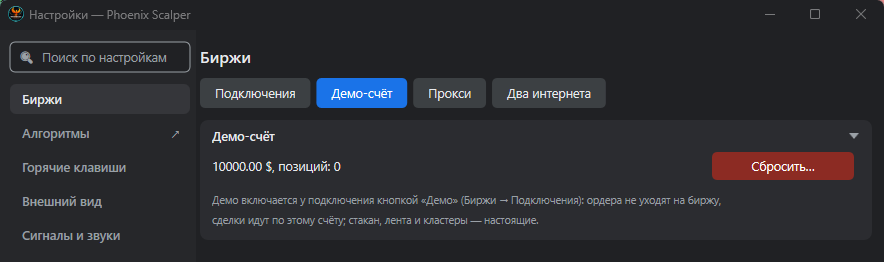
- Биржи → Подключения: у отключённого подключения нажмите «Демо». Точка у строки станет оранжевой, рядом — «ДЕМО».Exchanges → Connections: on a disconnected connection click “Demo”. The dot turns orange, with “DEMO” next to it.
- Торгуйте в стакане как обычно (глава 5). Демо-счёт один на все подключения.Trade in the ladder as usual (chapter 5). One demo account serves all connections.
- Вкладка «Демо-счёт» показывает баланс и число открытых позиций. «Сбросить…» — после подтверждения баланс снова 10 000 $, демо-позиции и демо-заявки удаляются.The “Demo account” tab shows the balance and the number of open positions. “Reset…” — after you confirm, the balance is 10,000 $ again, demo positions and demo orders are removed.
ПроксиProxies
Прокси нужен, если биржа недоступна из вашей страны или ограничивает запросы с вашего адреса. Подходят HTTP и SOCKS5 (например, 127.0.0.1:1080 у приложения Shadowsocks).A proxy is needed if the exchange is unavailable from your country or limits requests from your address. HTTP and SOCKS5 work (for example, 127.0.0.1:1080 of the Shadowsocks app).
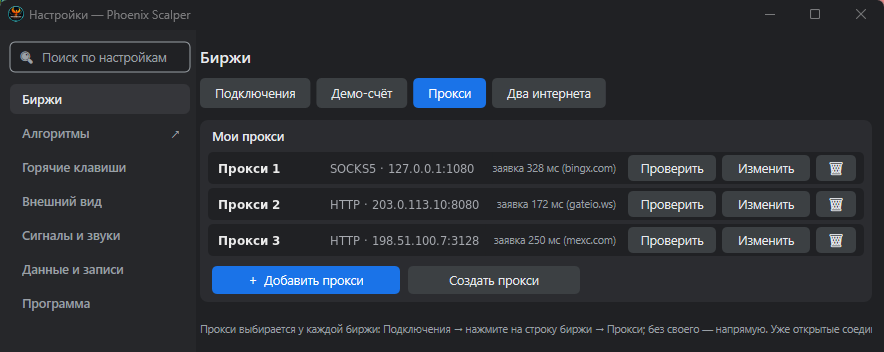
- Нажмите «+ Добавить прокси» и заполните: название, IP или адрес, порт, логин, пароль. Тип (HTTP или SOCKS5) программа определяет сама. Enter сохраняет поле, «Готово» закрывает правку.Click “+ Add proxy” and fill in: name, IP or address, port, login, password. The program detects the type (HTTP or SOCKS5) by itself. Enter saves the field, “Done” closes editing.
- «Проверить» — проверка связи через прокси. После первых заявок в строке видно, сколько шла последняя заявка и на какую биржу, например «заявка 172 мс (gateio.ws)».“Check” tests the connection through the proxy. After the first orders the row shows how long the last order took and to which exchange, e.g. “order 172 ms (gateio.ws)”.
- Назначьте прокси бирже: Подключения → ▸ у биржи → «Прокси» (рис. 2.4). Без своего прокси биржа работает напрямую. Уже открытые соединения переходят на прокси после переподключения.Assign the proxy to an exchange: Connections → ▸ on the exchange → “Proxy” (fig. 2.4). Without its own proxy the exchange works directly. Connections already open switch after reconnecting.
«Создать прокси» — если у вас есть свои серверы (Linux x86_64, вход root или пользователь с sudo): укажите их по порядку, программа сама поставит на них прокси Phoenix и свяжет в цепочку — к первому подключается программа, последний выходит к биржам. Пароли серверов не сохраняются, они нужны только на время установки (1–2 мин).“Create proxy” — if you have your own servers (Linux x86_64, root or a sudo user): list them in order, the program installs the Phoenix proxy on them and chains them — the program connects to the first, the last goes out to the exchanges. Server passwords are not saved; they are needed only during installation (1–2 min).
Два интернетаTwo internets
Если у компьютера два подключения к интернету — кабель и Wi-Fi (например, с телефона), Феникс следит за обоими. Кабель молчит около 10 секунд, а Wi-Fi отвечает — биржи сразу уходят на Wi-Fi; кабель оживёт — программа вернёт их обратно. Стакан при переключении пропадает на 2–5 секунд.If the computer has two internet connections — a cable and Wi-Fi (e.g. from a phone), Phoenix watches both. If the cable is silent for about 10 seconds while Wi-Fi answers, the exchanges move to Wi-Fi at once; when the cable comes back, the program returns them. The book disappears for 2–5 seconds during the switch.
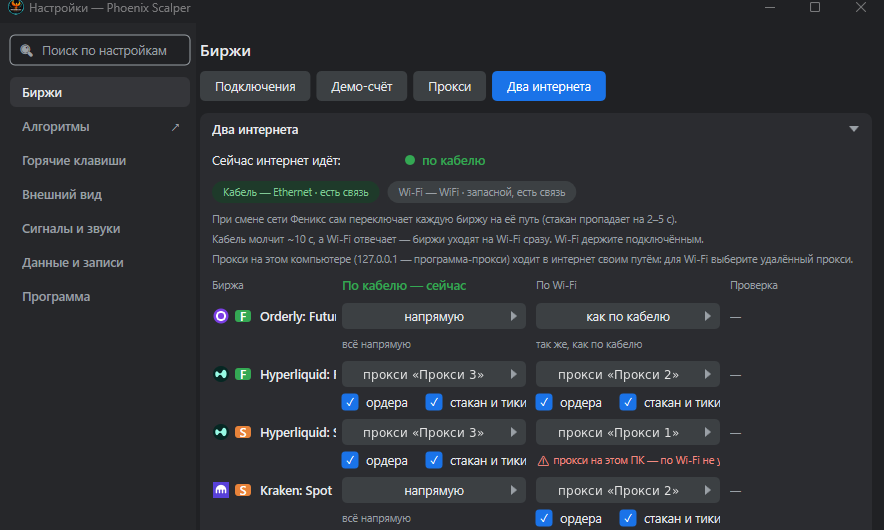
- Вверху — по какой сети интернет идёт сейчас, и состояние кабеля и Wi-Fi («есть связь», «запасной», «нет сети»).At the top — which network the internet goes through now, and the state of the cable and Wi-Fi (“connected”, “backup”, “no network”).
- Для каждой биржи две колонки. «По кабелю» — то же, что «Прокси» в её строке подключения (рис. 2.4). «По Wi-Fi» — свой путь: «как по кабелю», напрямую или другой прокси.Each exchange has two columns. “By cable” is the same as “Proxy” in its connection row (fig. 2.4). “By Wi-Fi” is its own route: “same as cable”, direct or another proxy.
- Под прокси две галочки: что идёт через него — ордера и/или стакан и тики. Без галочки эта часть идёт напрямую.Under a proxy there are two ticks: what goes through it — orders and/or book and ticks. Without the tick that part goes directly.
- «Проверить все» внизу списка измеряет время запроса к каждой бирже по кабелю и по Wi-Fi (колонка «Проверка»).“Check all” at the bottom of the list measures the request time to each exchange by cable and by Wi-Fi (the “Check” column).